Getting started
From Instagram and WhatsApp to a website
Put your shop on a website one step at a time, and keep taking orders on WhatsApp the way you do now.
Why a website, if chat already works
If your shop runs on Instagram and WhatsApp, you know your customers. They message at night, ask about sizes, want to see the back of a shirt and ask whether you deliver to their city. Keep all of that. Send them the website link, and the chat starts with the price, sizes and photos already settled.
“Price?” “Available in medium?” “Delivery to Multan?” You answer these every day. A website answers them before anyone asks. The price, sizes, photos and delivery terms sit on one page, and you send the link instead of typing the same reply twenty times.
What a website does that chat can’t:
- One record for every order. The items, the address, the phone number and how the customer is paying arrive together, instead of you piecing them together from voice notes and screenshots.
- Orders at any hour. Someone who finds you at midnight can place an order without waiting for a reply.
- Your own customer records. Your products, photos and customer history live in your own store, not only in one app’s inbox.
Decide what to list first
You don’t need your whole history on day one. Start with what people ask for most. Look at your last month of messages and posts: which designs did customers ask about most? Which ones do you still have in stock? Those are your first products.
Ayesha starts with the twelve suits she has in stock and the six that get the most questions. She leaves sold-out designs off for now and will add them when she restocks.
Keep names, prices and photos the same as in chat
Customers will see your Instagram post, your WhatsApp reply and your website. Keep the details the same on all three. If a print is called “Firoza” in your posts, call it Firoza on the site. If your post says one price, the site should say the same. Then nobody has to message you to check which price is right.
- Name: the name customers already use, plus the useful detail (“Firoza, 3-piece unstitched lawn”).
- Price: the same price as your posts. If delivery is charged, say so on the product page as well (see the launch checklist guide).
- Photos: the clearest photos you have, including the close-up of the print and the dupatta that customers usually ask for in chat.
- Options: sizes or other choices, only if the customer has to pick one. Unstitched suits often have none, which keeps things simple.
Group products the way customers browse
Collections group your products, like shelves in a shop. Ayesha creates three: “New prints”, “Under Rs 5,000” and “Eid collection”. You can fill a collection by hand, or set rules so it fills itself, such as every product under a certain price. Keep the list short; three to five collections are plenty for a small catalogue.
Set up the store itself
Start from a template
Pick a template made for your kind of shop. Each one is a complete store with sections, pages and a working checkout, so you swap in your own photos and words instead of starting from a blank page.
Make it look like your brand
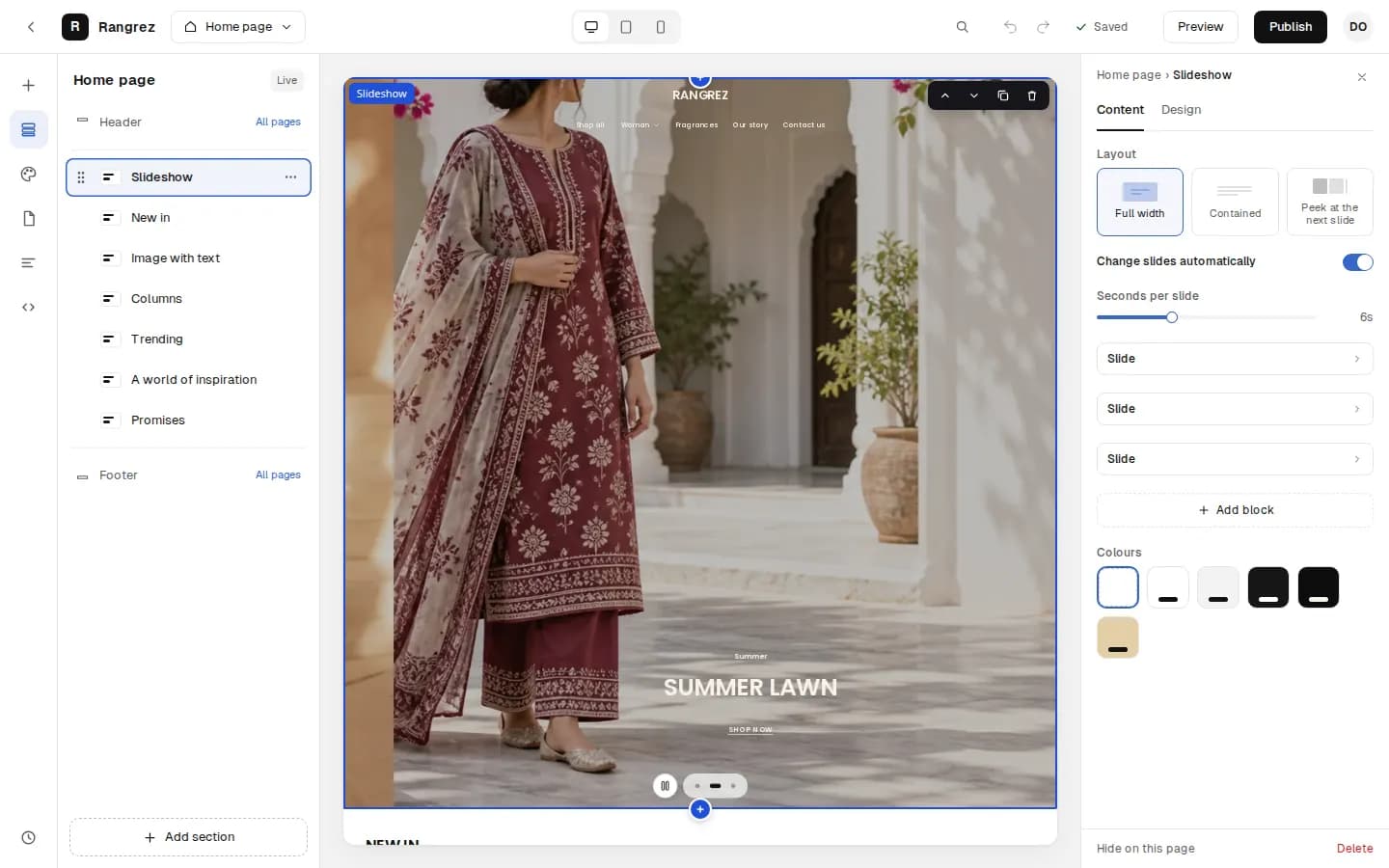
In the editor, add your logo, choose your colours and edit each section. Check the desktop and phone previews; most of your customers arrive from a phone, so the phone view matters most.
Add your products and collections
Add the first products you chose above, with prices, photos and stock, and put them into your collections.
Write the pages customers look for
About, Contact, Delivery and Returns. These are short pages, but they answer the questions that otherwise arrive in your inbox. Add an FAQ page for anything you are asked every week.
Publish when it is ready
Customers see nothing until you publish, so take a few evenings over it if you need to. When you’re happy with it, publish and ask for your store to go live.
Set up checkout the way your customers pay
Most of your chat customers probably pay cash when the parcel arrives, and they still can. Cash on delivery is switched on in checkout from the start, and you can add a COD fee if you charge one. If you want to take card payments too, connect your own Safepay account; card payments then go straight into your account, not through devhelp.
Checkout asks for what a courier needs to find the customer: a phone number first, then province, city, address and a landmark. The postal code is optional. That means fewer “where exactly is your house?” calls before dispatch.
Set your delivery charges by province. If you like, offer free delivery on orders above a certain amount. Ayesha charges one rate inside Punjab and another for the rest of the country, and offers free delivery on orders of two suits or more.
For the money side of COD, read what one COD order costs you, and for cards, getting set up for card payments.
Share the link where your customers are
Put your link wherever people already see your products.
- Instagram bio. Put your store link in your profile’s link field. Point people to it in captions: “Prices and sizes at the link in bio.”
- Product posts and stories. When you post a new print, add the product name so people can find it on the site.
- WhatsApp Business. Add the store link to your business profile. If you use the WhatsApp catalogue, each item can include a link to the product on your website.
- WhatsApp status. Share new arrivals with a link to the collection, not just a photo.
- Your replies. When someone asks “price?”, reply with the price and the product link.
Assalam o alaikum! Firoza is Rs 4,800, 3-piece unstitched lawn.
Photos of the print, dupatta and fabric: ayesha-lawn.devhelp.store/products/firoza
You can order on the page with cash on delivery, or tell me here and I’ll place it for you.
Delivery in Lahore is 2–3 days.
The reply answers the question, sends the page for the details and offers both ways to order. Some customers will order on the page. Others will keep messaging, and that’s fine.
Record chat orders in the dashboard
Some customers will always order in chat. Enter those orders in the dashboard, not in a notebook or your screenshots. You add the products, the customer’s name, phone and address, and how they are paying, and the order is recorded like any other.
When every chat order is in the dashboard:
- Your stock stays right: once the order is in, those items are held and can’t be sold twice.
- Website and chat orders go through the same steps: confirm, pack, dispatch, deliver.
- Each customer builds a history, including how many parcels they accepted and how many came back.
Confirm COD orders and keep customers updated
Before you hand a cash order to the courier, make sure the customer still wants it. From the order you can send the customer a confirmation link by WhatsApp or SMS. They open it and confirm the order, and you dispatch knowing they expect the parcel. If you’d rather call, that works too. Just confirm before the parcel leaves.
When you dispatch, record the courier and tracking number on the parcel. If you set up your courier with a tracking link, the customer can follow the parcel from their order page. Each order also has ready-made WhatsApp and SMS messages for when it is placed, confirmed, dispatched and delivered. You send them with one tap from your phone.
For more on confirmation and parcels that come back, read cutting COD refusals and returned parcels.
Bring your regular customers with you
Your best customers are the ones who buy from you in chat now. They like your products. What they need is a nudge to try ordering on the page, and that nudge should come from you, not from a post.
A small welcome offer helps. You can create a discount code for a first website order, for example a percentage off or free delivery, with a start and end date and a limit on how many times it can be used. Ayesha sends her regulars a code for free delivery on their first order through the site, valid for two weeks.
- Message your regulars yourself when the store opens, with the link and the code.
- Pin a post or story highlight that explains how to order on the website.
- When a regular orders on the site, thank them on WhatsApp. It shows them the site works and you’re still there.
- After delivery, ask happy customers to leave a review. Only customers whose order was delivered can review a product, so every review on your store comes from a real buyer.
Someone who found you through a friend’s story has never chatted with you. A few honest reviews on the product page do what your regulars’ word of mouth does in chat.
Your first month on the website
A plan for the first four weeks:
| Week | Focus | What to do |
|---|---|---|
| 1 | Launch | Publish the store, update your Instagram bio and WhatsApp profile, and post that the website is live. |
| 2 | Replies | Answer every “price?” message with the price and the product link. |
| 3 | Orders | Enter every chat order in the dashboard and confirm every COD order before dispatch. |
| 4 | Review | Look at which products sell, which questions still arrive in chat, and add those answers to the site. |
By the end of the month Ayesha still spends her evenings on WhatsApp, but the conversations are different. Fewer people ask for prices; more ask which print would suit an occasion.
Common mistakes
- Listing every design you have ever sold, including sold-out ones.
- Using different names or prices on the website and in your posts, so customers ask again in chat.
- Hiding the delivery charge until the last step of checkout.
- Keeping chat orders in a notebook, so stock goes wrong and the customer’s history is lost.
- Dispatching COD orders without confirming them first.
- Launching the site and never mentioning it in your bio, captions or replies.
Questions
Do I have to stop selling on WhatsApp?
No. Keep WhatsApp for conversations and send customers the product link for details. Orders taken in chat can be entered in the dashboard so they are tracked like website orders.
Do I need to list all my products before launching?
No. Start with what is in stock and what people ask about most. Add more as you go; customers would rather see a small shop that is accurate than a large one that is out of date.
Can customers still pay cash on delivery?
Yes. Cash on delivery is available at checkout, with an optional COD fee. You can also accept card payments through your own Safepay account.
How do I add an order a customer placed in chat?
Create the order from the dashboard with the products, the customer’s details and how they are paying. It then follows the same steps as a website order.
Do I need technical skills to build the store?
No. You start from a finished template and change it section by section in the editor, with a preview for desktop and phone before you publish.
Will my customers get updates about their order?
Each order has ready-made WhatsApp and SMS messages for placed, confirmed, dispatched and delivered, which you send with one tap. If you add a tracking link for your courier, customers can also follow the parcel from their order page.